LIMSey on Your Phone, Sample Storage, and Calculated Task Measurements
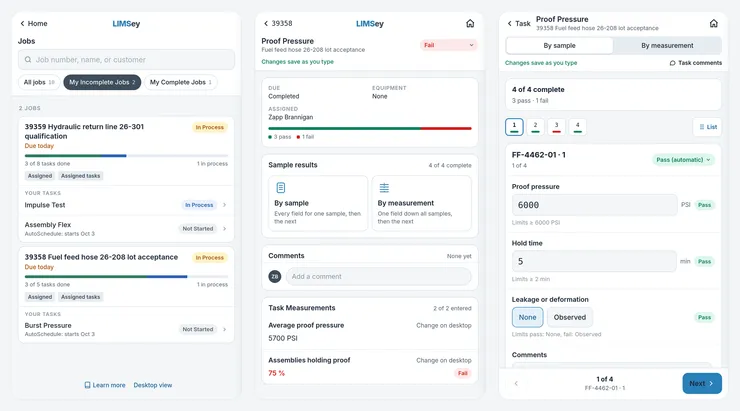
Testing doesn’t happen at a desk. It happens at the test stand, the chamber, the receiving dock, and the storage room, and until now LIMSey’s screens were built for a computer. LIMSey 41.0, released October 4, changes that. It also adds two things labs have asked for: a record of what happens to samples once testing is done, and formulas that can judge a whole set of results instead of one row at a time. Here’s what’s in it. The changelog has the short version, and complete release notes are in the app.
A phone view for the lab floor
The phone view is a separate set of screens designed for a phone or tablet. It isn’t the desktop layout squeezed onto a small screen. Open LIMSey on a phone and a note at the top of the page offers it: tap Use phone view. You can switch back with Desktop view at the bottom of any phone screen. The choice is remembered on that device only, so the computer at your desk keeps the full screens. You sign in the same way, and your role decides what you can see and change, exactly as on the desktop.
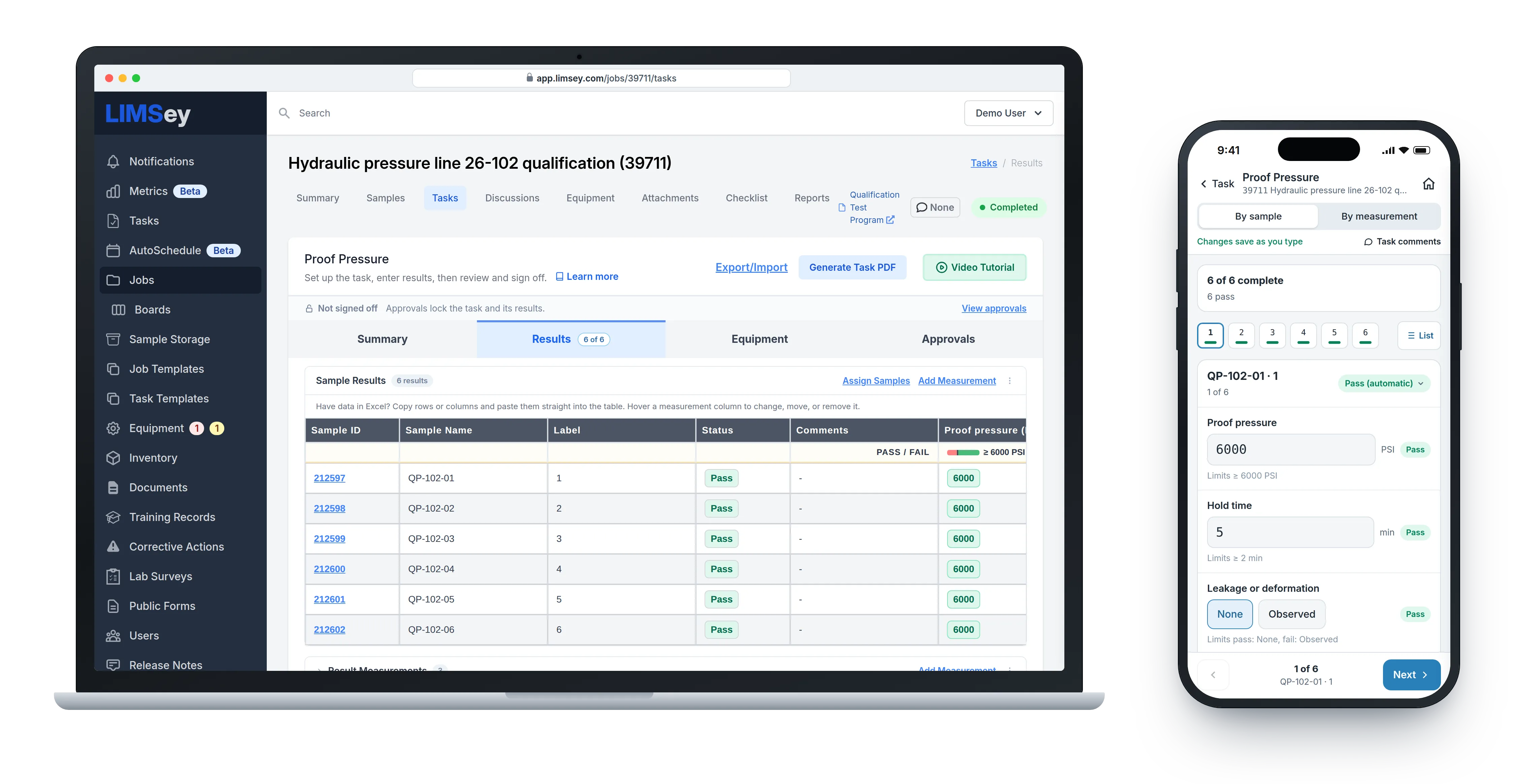
Here’s what’s on the phone:
- Home lists the screens your role can use, with counts: your inbox, your incomplete and late jobs, sample boxes due, equipment due, and inventory running low or expiring. Pick up where you left off takes you back to the last job, task, or results screen you had open, down to the sample you were on.
- Jobs has the same saved views as the Jobs screen. Each job shows a progress bar of its tasks and lists the tasks assigned to you, so you can open yours directly.
- Enter results one sample at a time (By sample), or one measurement down every sample (By measurement, with the low, high, and average as you go). Each field shows its limits underneath, and the result is marked pass or fail as the value goes in. A value saves when you finish it, and the screen says Saving, Saved, or Not saved with a Retry button, so you always know where you stand. Attachment fields take a photo from the camera or a file from the phone.
- Task comments have their own thread, with unread comments marked.
- Notifications, Sample Storage, Equipment (including the equipment log), and Inventory (log usage, dispose of expired lots, count what’s on the shelf) are all there too.
With the phone view on, the QR codes on travelers and sample labels open the job on the phone. There’s nothing to download from an app store and nothing for IT to roll out. If you’d like an icon, add LIMSey to your home screen (Add to Home Screen in Safari’s Share menu, or Install app in Chrome on Android) and it opens like an app, with a LIMSey icon.
The mobile page has more on what the phone screens cover.
Sample Storage: what happens to samples after testing
When a job’s testing is done, someone has to decide what happens to the samples, and stored samples have to be cleared out on time. In a lot of labs that lives in a spreadsheet, on a sticky note on the shelf, or in nobody’s head at all. Sample Storage puts it in the job.
An admin turns it on under Settings › Account › Sample Storage, sets how long stored samples are kept (90 days to start), and chooses the storage managers, per location if your account uses locations. From then on, job forms carry a Sample Disposition field: return to requester, discard, store for your account’s number of days, or other, with a note, so the plan for the samples is on the job from the start.
When testing is done, Record Disposition on the job’s Samples tab records what the lab actually did. Stored samples go into numbered boxes, each with a storage location and a discard date, and each box gets a label with DISCARD AFTER in large type and a QR code that opens the box on its job.
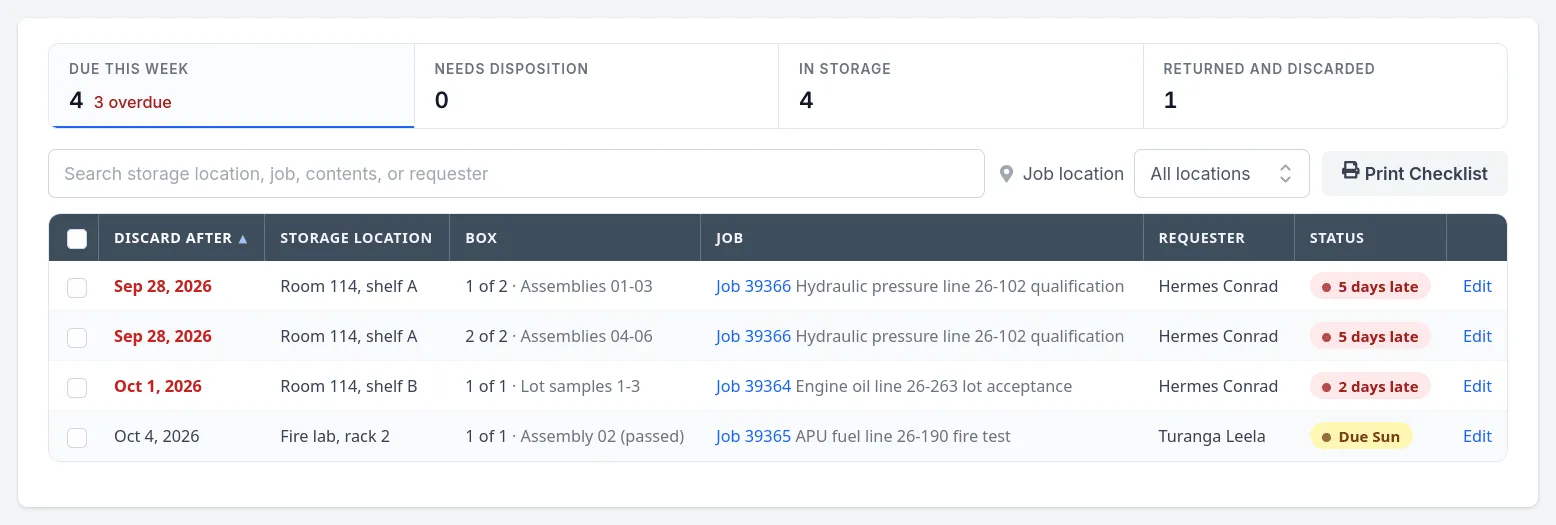
The new Sample Storage screen lists the boxes due this week (late ones first), everything in storage, what was returned or discarded, and finished jobs that still need a disposition. Print Checklist gives you a list to carry into the storage room, and back at your desk you mark the boxes discarded or returned together. Every Monday the storage managers get an email of what’s due, and requesters get one notice a week before their boxes come due, so nobody’s samples get thrown out by surprise.
It works alongside the rest of LIMSey’s sample tracking: the box, its location, and its discard date sit on the same job as the samples’ results.
Formulas that work like Excel, and measurements that judge the whole grid
Until now, LIMSey formulas could add, subtract, multiply, divide, and raise to a power, within one row. Lab worksheets need more than that: an average of readings, the largest value, an IF for a verdict, or a judgment across the whole set.
Formulas now take Excel-style functions: AVERAGE, SUM, MIN, MAX, MEDIAN, STDEV, COUNT, COUNTA, COUNTIF, SUMIF, AVERAGEIF, MINIFS, MAXIFS, IF, AND, OR, ISBLANK, ABS, ROUND, SQRT, LOG10, LN, EXP, and PI, plus comparisons and the row’s label. Insert function in the formula editor adds one, and Preview points out any mistake before you save. Statistics skip blank cells, as Excel does.
The bigger change is where formulas can go. A task measurement whose field type is Formula now calculates from the entire results grid. Inside it, a result measurement stands for the whole column. So AVERAGE of a column averages every sample, COUNTIF(column, "<=0.204") / COUNT(column) * 100 is the percentage of samples at or under 0.204, and AVERAGEIF(Label, "Baseline*", column) averages only the baseline rows, so a treated group can be compared with its baseline in the same task.
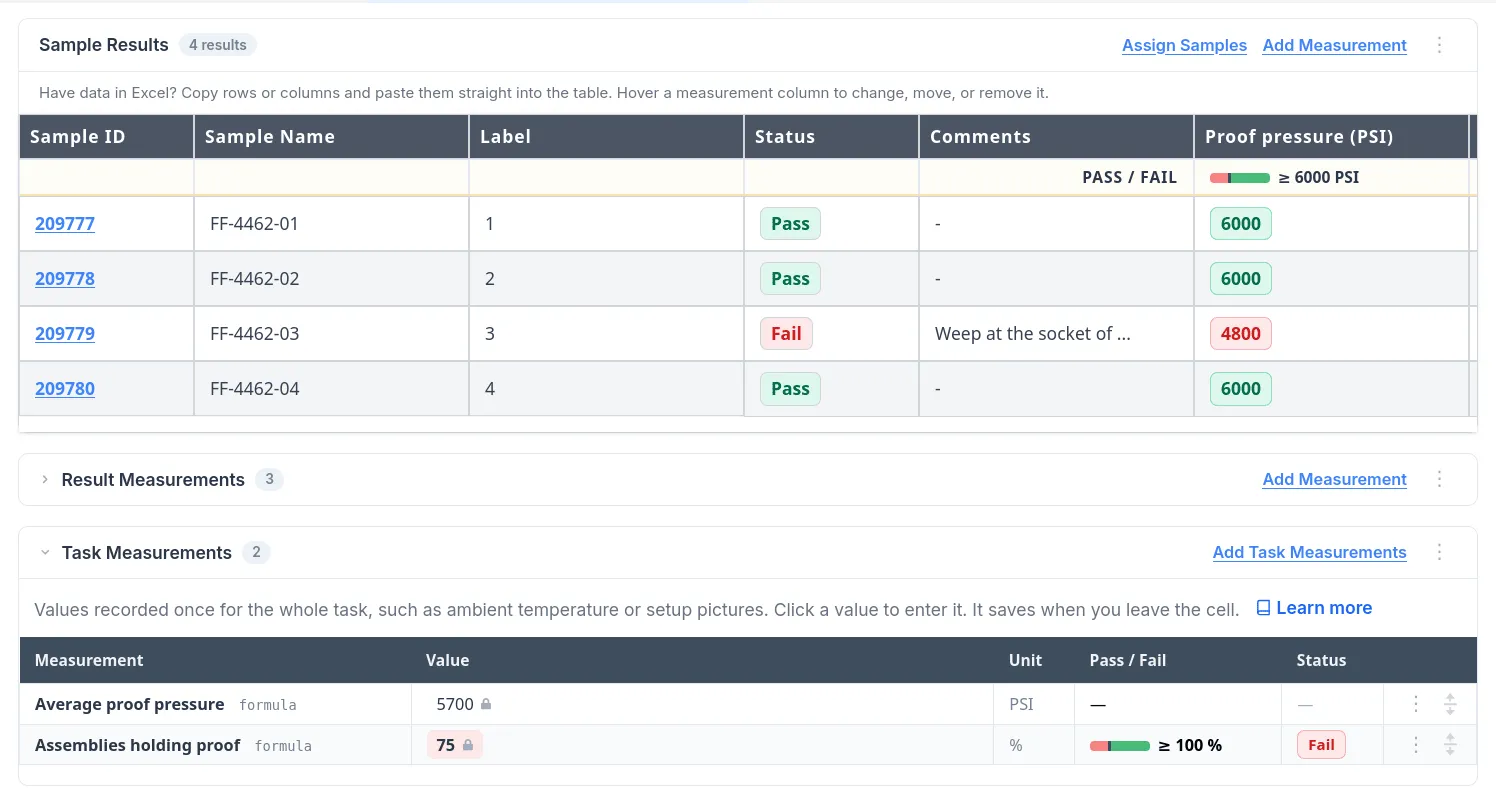
Give a calculated measurement a pass/fail rule like any other. If it fails, the task fails, even when every individual row passes. That’s how lot acceptance criteria are usually written (“the average shall be at least…”, “no more than one in ten shall exceed…”), and it’s a judgment that often ends up in a spreadsheet off to the side. The value updates as results come in. Pass/fail rules also gained Equal To.
Formulas saved before this release keep computing as they did, with three changes worth knowing about:
- Numbers typed into a formula now divide as decimals: 10/3 is 3.333, where it used to be 3.
- Zero divided by zero shows #DIV/0!, and a formula error is judged a fail.
- A formula that isn’t valid can no longer be saved. The editor tells you what’s wrong.
Equipment on one screen, with a Due tab
Equipment, Calibrations, and Maintenance used to be three links in the menu. They’re now one Equipment screen with four tabs, and the first, Due, is the list to check each morning. It shows every late calibration and maintenance item on in-service equipment, plus everything due in the next seven days, most overdue first. Filter by location and owner, and record a calibration, send one out, or mark maintenance complete right from the row.
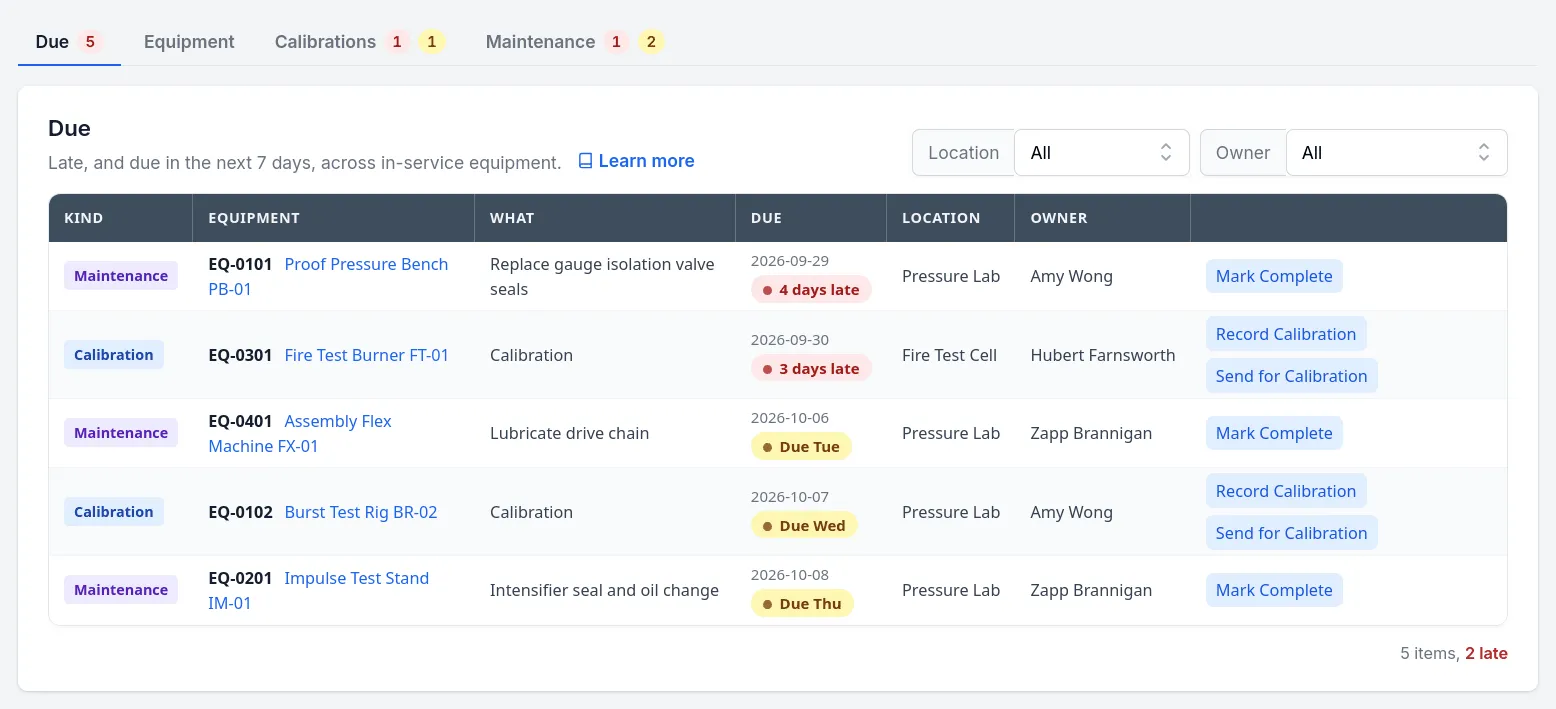
The same Due list is on the phone, so whoever is standing at the machine can see whether it’s in calibration before running a test. More on calibration and maintenance tracking.
Also in 41.0
- Corrections on signed tasks. A typo in a result label or a task name used to mean removing approvals, editing, and signing again. A new role capability, off until an admin turns it on, lets chosen people fix those without removing anyone’s approval. Each correction asks for a reason (and the signing password, if your account requires one), and the Approvals tab keeps a permanent record of who changed what, when, and why. Result values on a signed task still can’t be changed.
- Discussions you can reply to in place. A job’s discussions are now cards with the latest replies and a reply box. Follow a discussion to hear about new replies.
- Task comments notify people. The people on a job, and anyone assigned to one of its tasks, are now told when someone comments on a task. If you belong to more than one account, each account now has its own inbox.
- New default Jobs views. My Incomplete Jobs and My Complete Jobs show every job you’re part of, in any role. Anyone who set up their own views keeps them.
- Videos in the Help Center. A new shelf of short narrated walkthroughs, with captions, chapters, and a transcript you can click to jump to that moment. The first, Create a job, runs under four minutes. Help search now shows matching sections as you type.
- Your time zone from your browser. People who never set a time zone were on UTC. LIMSey now fills it in from the browser, so daily reminders arrive at sensible hours.
- Another layer of access checks. Screens, live updates, file downloads, and the API each confirm a record’s account and the person’s role before showing or changing it. For API integrations, every id in a write request is checked against your account, and an id that isn’t found returns a
422naming it.
Tell us what to build next
Much of LIMSey started as a customer request. If there’s something your lab is missing, tell us. If you’d like to see any of this live, phone and desktop side by side, book a demo.